
By 2026, Windows 11 has transformed significantly from its initial release, becoming a platform laden with AI-driven features. While AI has taken center stage within various first-party apps and OS functionalities, users often find themselves contending with ongoing bugs and issues that arise with each feature update.
However, there exists an alternative—Windows 11 LTSC. This specialized edition of Windows is stripped of bloatware, marketing distractions, and the ubiquitous Copilot icon that many users find intrusive. Primarily designed for enterprises and specialized environments, Windows 11 LTSC offers an experience focused on stability and efficiency.
After several days of using Windows 11 LTSC on my system, it has become clear that this version offers an appealing alternative for those seeking a streamlined OS experience.
Understanding Windows 11 LTSC
Unlike its macOS counterpart, Windows comes in various editions tailored for distinct user needs. The most common versions include Home for everyday users, Pro for professionals, and Enterprise aimed at large organizations. Other notable editions, such as Windows 11 Pro for Workstations and Windows 11 IoT Enterprise, fulfill specialized requirements.
The Windows 11 IoT Enterprise variation caters to businesses averse to frequent updates, new features, or additional apps, providing a stripped-down operating system known as Windows 11 LTSC. This version falls under the LTSC (Long-Term Servicing Channel) framework, allowing users to postpone feature updates while receiving quality updates monthly for a decade, with the option to apply feature updates every three years when necessary.

So lean is the Windows 11 LTSC version that only Microsoft Edge is pre-installed as a modern app. Users will find classic applications such as Calculator, Notepad, and Microsoft Paint. Additionally, there is no Copilot integration, no Microsoft Store, and features like Widgets and the Discover feed in the taskbar are nonexistent.
One notable advantage of Windows 11 LTSC is that it does not require a Microsoft account, making it the only version that allows operation under a Local Account.

The LTSC lineage dates back to Windows 10’s Long-Term Servicing Branch (LTSB), introduced for systems requiring infrequent changes. Renamed to LTSC in 2016, Windows 10 LTSC gained popularity among users who favored a stable system.
Initially, no LTSC edition accompanied the launch of Windows 11, as Microsoft focused on integrating services, subscriptions, and AI capabilities. The adoption of LTSC for Windows 11 took time, as the operating system needed to establish a stable base before creating a long-term servicing version.
Eventually, Microsoft announced Windows 11 LTSC in April 2023, launching it alongside the Windows 11 24H2 cycle under the “Windows 11 LTSC 2024” branding in the second half of 2024.
Who Benefits from Windows 11 LTSC?
Windows 11 LTSC is designed with the following users in mind:
- Large organizations such as banks, hospitals, and government offices requiring a consistent and secure OS.
- Industrial and embedded systems, including ATMs and medical devices.
- IT departments seeking fewer updates across extensive systems.
- IoT devices needing long-term support of up to 10 years.
This raises an important question: can everyday users download and run Windows 11 LTSC?
For those interested in a minimal OS sans AI features and bloatware, Microsoft permits general users to download and evaluate Windows 11 LTSC for a duration of 90 days.
How to Download the Windows 11 LTSC ISO File
- Visit the official Windows 11 IoT Enterprise LTSC download page.
- Leave the default language as English (United States).Choose either x64 or AMD64 editions for non-ARM chipsets.
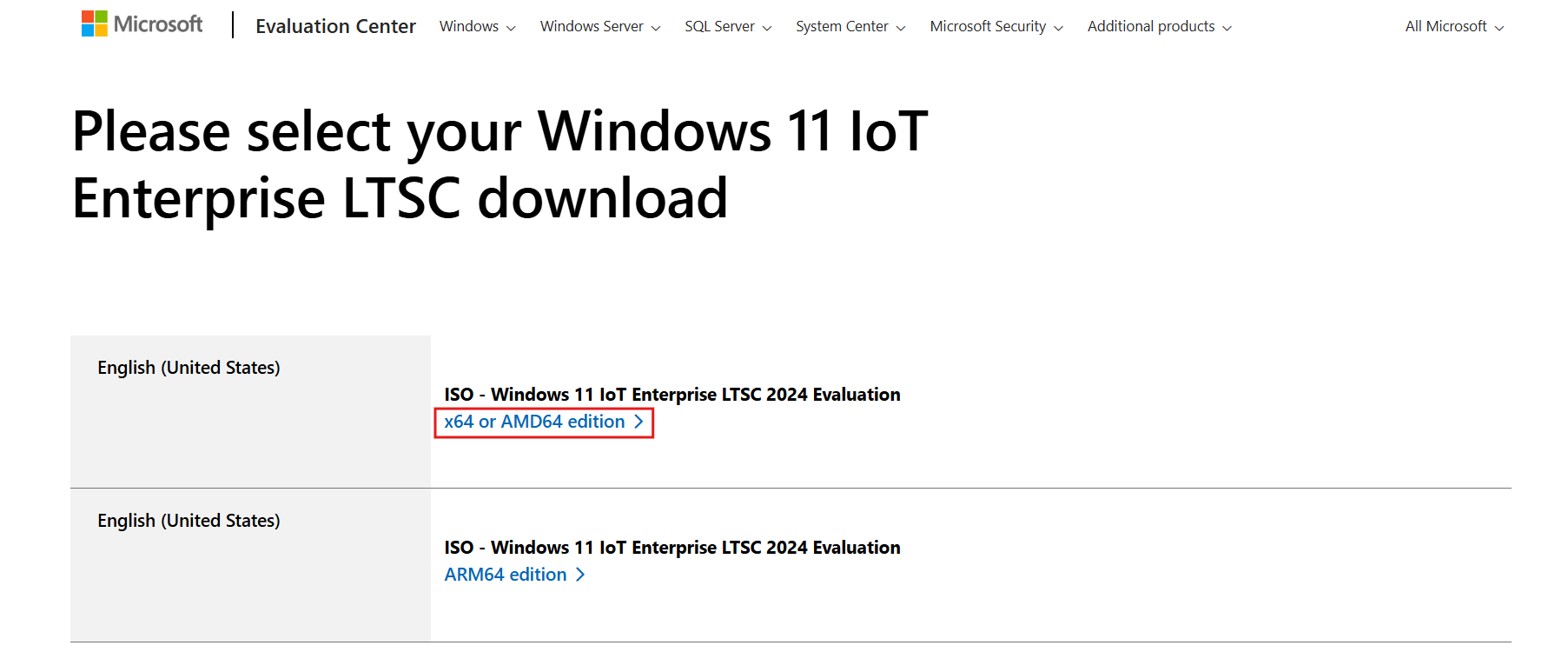
Download Windows 11 IoT Enterprise LTSC - Save the ISO file to your computer.
The ISO file’s size is approximately 4.71 GB, although the download speed may vary—occasionally falling below 500KBps. Ensure you allocate sufficient time for the download.
You can mount the ISO file on a virtual machine for testing. Note that LTSC versions lack the Media Creation Tool, so for creating a bootable USB drive, consider using tools like Rufus or command prompt instructions provided by Microsoft.
Keep in mind that using Windows 11 LTSC will only be in a trial state for 90 days, after which activation with a valid LTSC license key will be necessary. Transitioning from Windows 11 Pro or Home to LTSC requires a fresh installation, which will format your drive. For those not planning to purchase through Microsoft’s Volume Licensing Service Center (VLSC), attempting this on a hobby PC or VM is recommended.
Installing Windows 11 LTSC
Installing the Windows 11 IoT Enterprise LTSC ISO mimics the process of other Windows versions and adheres to similar hardware and processor requirements.
Minimum System Requirements for Windows 11 IoT Enterprise LTSC
| Component | Preferred Minimum Requirements | Optional Minimum Requirements |
|---|---|---|
| Processor | 1 GHz, 2 Cores | 1 GHz, 2 Cores |
| System Memory | 4 GB | 2 GB |
| Storage Size | 64 GB | 16 GB |
| Storage Type | Solid-State Drive (SSD) | SSD, HDD, SSHD, Flash (eMMC, SD, USB) |
| System Firmware | UEFI | BIOS |
| TPM | TPM 2.0 | Optional |
| Secure Boot | Enabled | Optional |
| DirectX | DirectX 12 | DirectX 10 / None |
| Display | 9-inch diagonal, 720p HD | Custom Size / Optional |
For older systems, you can verify processor compatibility here.
Once you’ve prepared the ISO on a virtual machine or bootable drive, proceed with the installation just as you would with any other Windows version.

During the out-of-box experience (OOBE), you must enter a school or work account to sign in. However, there is an option to bypass this by selecting “Sign-in options” followed by “Domain join instead.”
After following the prompts, you can continue to install Windows without signing in. Upon installation completion, you’ll encounter the stark Windows 11 LTSC desktop, which is devoid of clutter, with only the ‘Get Started’ app visible on the taskbar.

To check the OS build and product name, simply press Run and type winver.

Experiencing Windows 11 LTSC
The experience of utilizing Windows 11 LTSC is refreshingly minimalistic, with nearly no pre-installed apps. The Start menu can be described as almost empty.

Venturing into the “All apps” section reveals a short list comprising only basic tools like Calculator, File Explorer, Microsoft Edge, and classic versions of Notepad, Paint, and Snipping Tool.
This restrained selection aids in conserving storage since it effectively avoids the bloatware typical of Windows installations. Post-installation, total used storage is just 16.3 GB, while the standard Windows 11 Pro exceeds 20 GB.

While the performance metrics for Windows LTSC largely correlate with regular Windows, running on a VM doesn’t allow for precise performance evaluation. Curiously, however, the CPU and RAM usage appears significantly lower when compared to Windows 11 Pro, highlighting the resource efficiency of LTSC’s minimalist approach.

Beneath the nostalgic surface, classic apps like Calculator, Notepad, Paint, and Snipping Tool provide a familiar experience. The old-fashioned Calculator, in particular, feels like a throwback; it offers no resizing options and lacks the enhanced features of modern calculators.

Notepad maintains its role as a lightweight text editor without the newer updates available in current versions. It offers simplicity and speed but won’t receive any of the upcoming features designed for modern iterations.

MS Paint retains a nostalgic charm, unencumbered by modern enhancements that some users may find distracting. The traditional layout feels inviting, and while AI-infused features from newer versions have their appeal, the absence of such elements in LTSC offers a quieter creative environment.

The classic Snipping Tool retains its charm, appearing fresh despite its age.

The lock screen experience is yet another topic to consider. Windows 11 LTSC lacks options for using Windows Spotlight, and new features such as Widgets are notably absent—further emphasizing the stripped-down essence of this edition.

Interestingly, within the System Settings, “AI components”are present—similar to the standard Windows 11 Pro. However, the absence of toggles for experimental features is noticeable in LTSC.
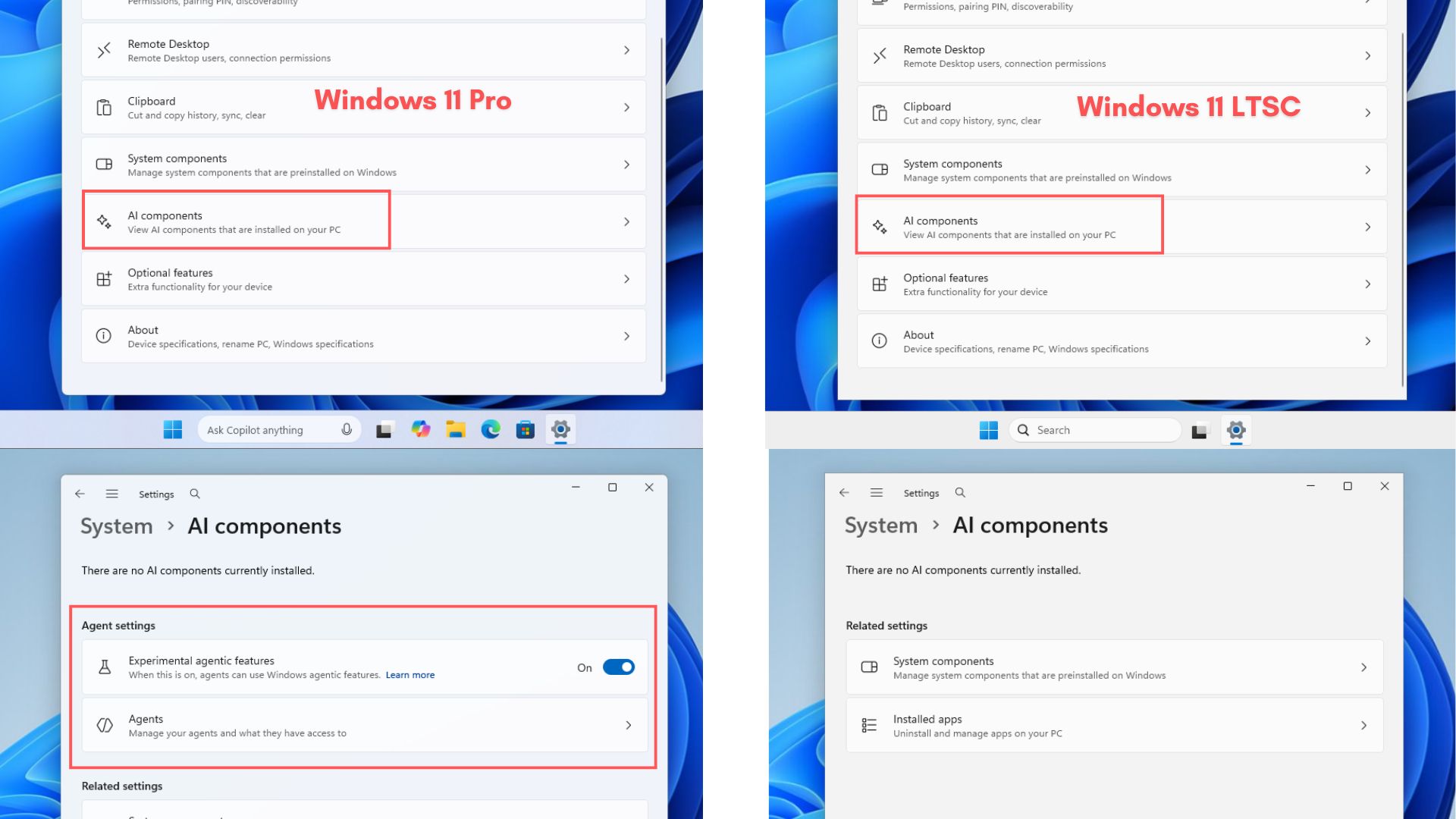
The File Explorer functions adequately, but performance improvements are still not evident in the LTSC version. The context menu appears more compact compared to Windows 11 Pro.

Here as well, the AI actions submenu appears, but no actions are accessible within it.

However, the experience became less appealing when I tried accessing the Edge browser.


Upon opening a new tab in Edge, users are met with an array of advertisements, sponsored content, and integrated Copilot features. While you can disable Copilot and eliminate AI features in Windows, the browser’s clutter could prompt users to seek alternatives.

Fortunately, Windows 11 LTSC lacks the intrusive Drag Tray sharing interface, which is a common annoyance in the standard Windows 11 configuration.
Is Windows 11 LTSC Suitable for Daily Use?
The primary consideration is that the trial period lasts only 90 days, and obtaining a License for Windows 11 LTSC may not be as straightforward as with regular editions. If you can manage that hurdle, you’ll find that it functions like Windows 11, allowing normal software installs.
However, to access apps from the Microsoft Store, you’ll first need to install the Store itself. For instance, attempting to download the Brave browser directly from the Store won’t work without first securing the Microsoft Store.
Acquiring the Microsoft Store is minimal hassle—simply look for the download link on the Microsoft website, and you should easily find it.


Once the Microsoft Store is up and running, you can download any applications available without needing to log in with a Microsoft Account.
Pros and Cons of Windows 11 LTSC
| Advantages of Windows 11 LTSC | Disadvantages of Windows 11 LTSC |
|---|---|
| No Copilot integration or AI features | Does not receive new Windows features |
| No bloatware or preinstalled apps | Microsoft Store not included by default |
| No ads, widgets, or promotional content | Some modern apps and services may not work out of the box |
| Stable with only security updates | Not intended for regular consumers |
| Long support lifecycle (10 years) | Requires Enterprise licensing for long-term use |
| Minimal background processes | Some drivers or features may lag behind |
| Lower storage footprint | No feature upgrades like 23H2 → 24H2 |
| Allows installation without MSA | Some enterprise policies may apply |
| Ideal for mission-critical and embedded systems | Limited access to new Microsoft technologies |
Is Windows 11 LTSC Right for You?
While many power users and gamers may enjoy the streamlined and efficient environment of Windows 11 LTSC, it may not necessarily be the optimal choice for gaming PCs. Microsoft continues to promise significant improvements for gaming performance in standard Windows 11, including system-level optimizations and better Xbox integrations. Gamers might thus benefit more from sticking with the conventional version.

Where Windows 11 LTSC truly excels is in environments where stability is prioritized over new functionalities. It serves as an excellent option for older users seeking simplicity and for legacy systems capable of running Windows 11 yet straining under the demands of the more modern versions.
With its aesthetics reminiscent of Windows 7 but the interface of Windows 11, Windows 11 LTSC presents a compelling option for those who appreciate a less distracting computing environment. I, however, find myself content with the regular Windows 11, where I’ve adapted to many of the new features and applications, including enhancements in Notepad, Photos, and more, eagerly anticipating what improvements 2026 will bring for Windows 11.