
For those looking to install Windows 11, the ISO images for the 25H2 version are readily available on Microsoft’s servers. Users can download these directly from the official site to facilitate an offline installation or a pristine setup process. To begin, navigate to Microsoft’s downloads page, locate the ISO section, choose the desired Windows 11 25H2 edition, select your language, and initiate the download.
It is highly advisable to keep a copy of Windows ISOs. Having an ISO file on hand allows for greater flexibility when it comes to installation methods, such as manual upgrades, clean installations, or creating a safety backup. This resource proves invaluable in the event of a PC startup failure.
Recently, Microsoft informed Windows Latest that it now updates the Windows 11 ISOs monthly with cumulative updates. This means that the offline installer will include the latest enhancements, including a revamped Start menu and vibrantly colored battery icons in the taskbar.

It is worth noting that if you are currently using Windows 11 version 24H2, support will conclude on October 13, 2026 for both Home and Pro editions. Therefore, it is prudent to consider upgrading to the 25H2 version or using the offline installer for a fresh start if you are experiencing issues.
The Windows 11 25H2 ISO file size is approximately 7.9GB and is available in various editions, including Home, Pro, and Enterprise. Notably, Microsoft has phased out 32-bit versions, making this release exclusively 64-bit, along with ARM builds for compatible devices.
Download Windows 11 25H2 ISO Files
You can download the Windows 11 25H2 ISO files directly from Microsoft. Below, you’ll find generated links allowing immediate access:
Note that these links are valid for 24 hours, and we will strive to refresh them daily, ensuring that you have access to the latest 25H2 ISO image.
If your ISO file comes from a different source, verifying its authenticity is crucial. You can do this by checking the hash value against Microsoft’s checksum data. Here’s how you can confirm this:
Open PowerShell and input the Get-FileHash command to retrieve the hash value for the file. For example, if your ISO is in the downloads directory, use the command: Get-FileHash C:\Users\username\Downloads\Win11_24H2_English_x64. ISO.
This will generate the SHA256 value, which you can compare with the provided screenshot below:

Steps to Download Windows 11 25H2 ISO
- Visit Microsoft’s official Windows 11 download page and scroll to the section labeled “Download Windows 11 Disk Image (ISO).”
- In this segment, select Windows 11 (multi-edition ISO for x64 devices) from the dropdown and hit the Download Now button.

- If your device runs on ARM architecture, click on the notice preceding the dropdown that states “Windows 11 ISOs for Arm64 devices are available here.”
- Next, select your preferred language to align with your system language found under Settings > Time & Language.

- Once you’ve selected the language, click Confirm, and a direct download link for the ISO file will be generated.
The Windows 11 25H2 ISO is exclusively available in a 64-bit format, with its size varying based on the chosen language pack.
Installing Windows 11 25H2 Using ISO
Upgrading Existing Windows via ISO (No Data Loss)
If you’re already running Windows 11 and wish to upgrade to version 25H2, follow these simple steps:
- Navigate to the folder containing the downloaded ISO file, right-click on it, and select Mount to create a virtual drive in File Explorer.
- Access the mounted drive and execute setup.exe.

- The “Windows 11 Setup” window will appear. Select Yes when prompted for administrator permission. The setup will start checking for updates, installing necessary security updates along the way.

- To skip any updates, uncheck the option “I want to help make the installation better.”
- On the “Ready to install” screen, ensure “Keep personal files and apps” is selected.

- Finally, click Install, and the upgrade process will commence.

The installation will require several restarts and typically lasts between 20 to 40 minutes, depending on your device’s specifications.
If you prefer a fresh installation using the ISO, repeat the previous steps but select “Change what to keep” and opt not to retain personal files and apps, acknowledging that this will erase all content from your system.
Using Media Creation Tool for a Clean Install of Windows 11 25H2
For those opting to create a bootable USB containing the 25H2 version, Microsoft’s Media Creation Tool, now updated for Windows 11 25H2, is an excellent resource.
The Media Creation Tool also enables the creation of an ISO file; however, for a USB installation, ensure your drive has a minimum of 8GB of available space.
- Download and install the Windows Media Creation Tool from Microsoft’s official website.

- Open the tool and select “Create installation media.” Here, you can choose your language and edition, followed by deciding whether to create a bootable USB drive or download the ISO file directly.

- Click Next and select your USB flash drive from the available options.
- As you hit Finish, Windows Setup will download Windows 11 version 25H2 and prepare either the bootable USB drive or the ISO file.
This method is particularly useful for preparing installation media for a different PC or when you need a USB installer ready to go.
Why You Should Always Keep a Windows 11 ISO
For long-term Windows users, maintaining a copy of the ISO is often something you only understand the importance of during a system failure.
The primary rationale for having an ISO backup is recovery; in cases where Windows fails to boot or becomes corrupt, built-in recovery tools rely on files already within your system. If those files are damaged, recovery will not function correctly. An ISO provides a reliable, known-good copy of Windows for repair or reinstallation.

Conducting a clean install using an ISO is the most trustworthy way to resolve ongoing technical issues due to its capability to start afresh.
Given that the ISO size is close to 7GB, maintaining a bootable USB for offline installation also proves invaluable, especially in areas with unstable internet connectivity.
What to Expect During Windows 11 25H2 Installation
Upon installation, users will encounter the Windows setup process (OOBE) in which you will:
- Select your region and language.
- Sign in with your Microsoft account.
- Configure privacy settings.

Depending on your internet connection and current build, Windows may install several updates during the setup, and this entire process can take anywhere from 45 minutes to an hour.
Key Features and Improvements in Windows 11 25H2
The Windows 11 25H2 version includes a host of features that enhance the operating system’s appearance and introduce various quality-of-life improvements. Microsoft adopts a controlled rollout strategy for Windows features, which means that not all features will be accessible immediately after installing 25H2. Several features also overlap with those introduced in the 24H2 update.
Start Menu, Taskbar, and Desktop Enhancements
- Redesigned Start Menu: This new layout introduces a scrollable “All” apps section, with options to switch views between Category and Grid. It also provides responsive scaling for larger screens and includes a mobile device button for Phone Link integration.
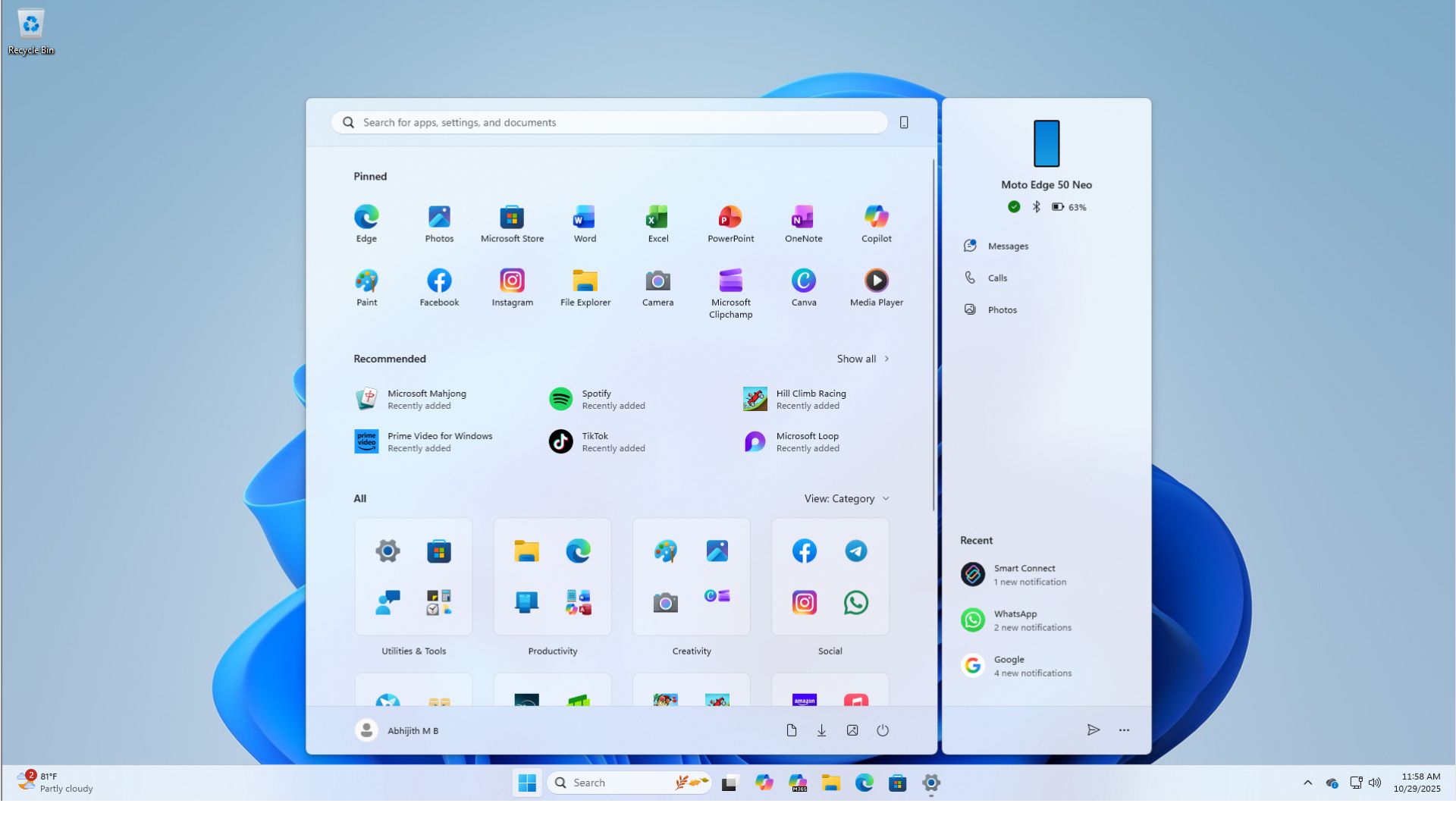
Feature-rich Start menu setup in Windows 11 after the new Start menu update - Taskbar Network Speed Test: Users can access a built-in network speed test directly from the taskbar, simplifying the process of checking Wi-Fi or Ethernet speeds.

- Battery Icon Updates: The taskbar and lock screen now feature redesigned battery icons with color indicators (green, yellow, red) and percentage displays.

- Taskbar Search Previews: Search results now group items with counts, and users can preview content by hovering over a result without needing to open it.

- Enhanced Desktop Backgrounds: Users can now set WebP (.webp) images directly as their desktop background.

- Movable Hardware Indicators: The on-screen positions of hardware indicators, such as volume and brightness controls, can now be adjusted through Notification settings.

File Explorer Improvements
- Recommended Section: A new “Recommended” section on the File Explorer homepage simplifies access to frequently used or recently downloaded files.

- Simplified Context Menu: Common actions such as Share, Copy, and Move have been consolidated into a single organized menu with clean dividers.

- Consistent Dark Mode: Updates to progress bars, chart views, and confirmation dialogs enhance their compatibility with the dark theme.

- Voice Typing Feature: Users can utilize Voice Typing (Windows key + H) to rename files directly within File Explorer.

AI and Copilot Integrations
- AI Actions in File Explorer: Features previously controlled by enterprise settings are now enabled by default, allowing users to right-click files and invoke AI functionalities for actions such as blurring backgrounds, erasing objects, and summarizing Microsoft 365 documents through Copilot.

- Click to Do & Agent in Settings: Click to Do now provides a context menu with a range of popular AI-powered actions. The Settings application features direct navigation links to pertinent pages via Agent.

- Copilot Vision in Taskbar: Users can share an application window directly with Copilot from the taskbar for contextual information about what’s currently displayed.

- Narrator Image Descriptions: The Narrator feature collaborates with Copilot to provide in-depth image descriptions across all Windows 11 devices.

Gaming and Multimedia Enhancements
- Handheld Full-Screen Experience (FSE): Handheld devices now boast a console-style, distraction-free interface centered around the Xbox app, which minimizes background processes to bolster performance. Recently, this feature has been rebranded as Xbox Mode.
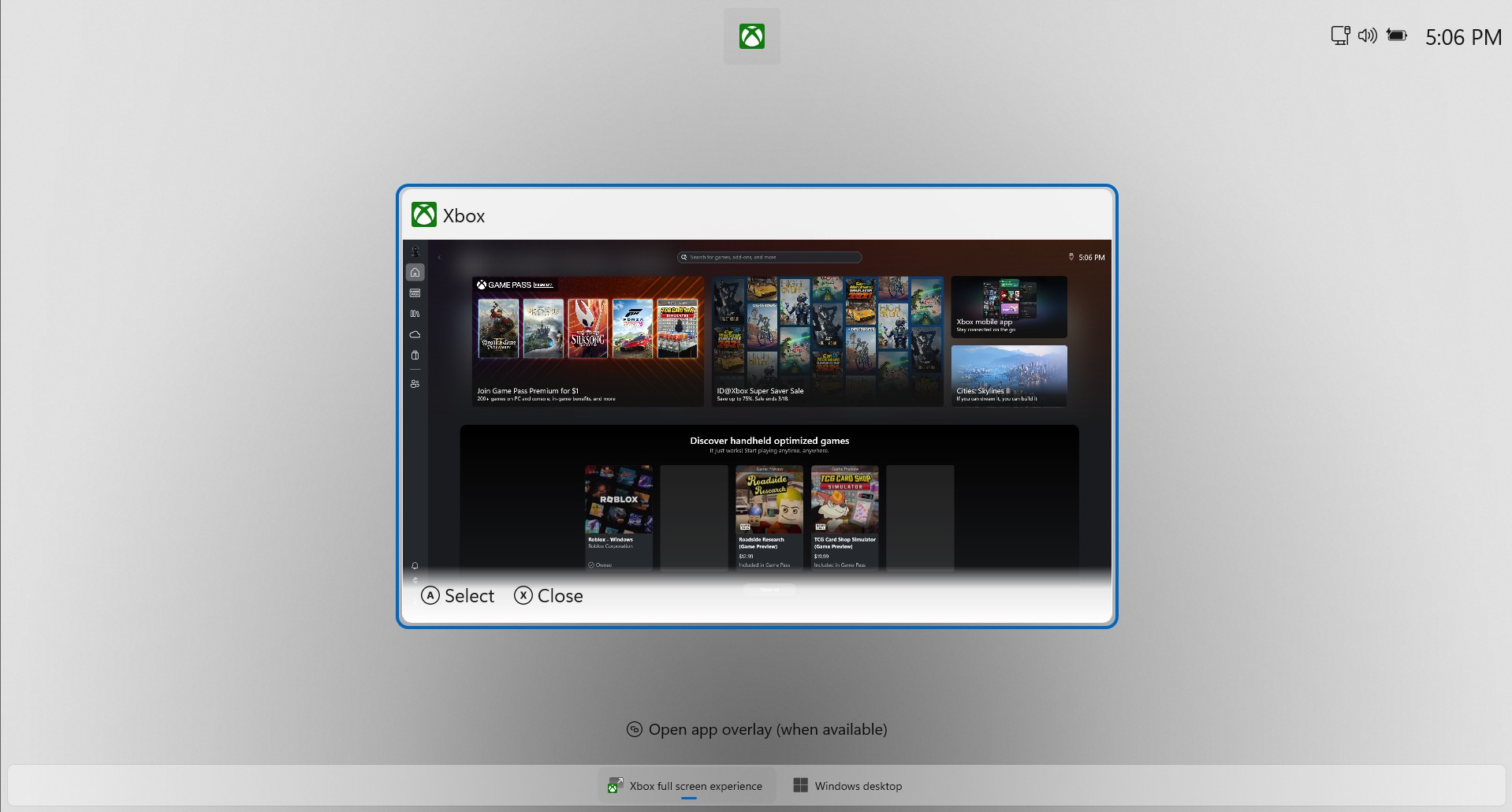
Switching between Xbox Mode and Windows Desktop - Xbox Controller Shortcuts: On supported handheld devices, pressing the Xbox button momentarily opens the Game Bar, while a prolonged press brings up Task View.
- Windows MIDI Services: Improved support for MIDI 1.0 and MIDI 2.0 enables app-to-app routing and customized port names.
System Settings and Administration Upgrades
- Control Panel Migration: Keyboard settings such as character repeat rate and cursor blink speed, along with Date/Time configurations, have been migrated from the Control Panel to the Settings app.

- Virtual Workspaces: A new toggle in Advanced Settings makes it simple to activate or deactivate virtual environments like Hyper-V and Windows Sandbox.
- Advanced Settings & Git Integration: The “For Developers” section has been revamped into “Advanced Settings, ” now showcasing Git repository details (branch, diff count) in File Explorer.
- Smart App Control: Users can turn Smart App Control (SAC) on or off directly in Windows Security without the need for a complete OS reinstallation.

Smart App Control finally lets you turn it off without resetting the OS - Built-in Sysmon: The System Monitor (Sysmon) is now a native optional feature, providing the capability to track system events for improved threat detection.

- UAC for Storage Settings: Accessing Storage settings will prompt a User Account Control (UAC) dialog, ensuring only authorized users can manipulate system files.
Input, Accessibility, and Cross-Device Features
- Cross Device Resume: Seamlessly pick up activities from your Android device on your Windows PC, including Spotify, Microsoft 365 documents, and browsing tabs.

- Voice Access & Typing: Voice Access now accommodates natural language commands and features a streamlined setup. Voice Typing includes a new adjustable “Wait time before acting” setting.
- Narrator Enhancements: The Narrator includes a new Braille Viewer, improved reading experiences within Microsoft Word, and more control over the announcement of screen elements.
- New Emojis and Shortcuts: Support for Emoji 16.0 is now included, along with a new system tray icon. Additionally, typing en dashes and em dashes is simplified through new Windows key + Minus shortcuts.

- Haptic Pen Feedback: Haptic feedback will be provided for compatible pens when hovering over close buttons or resizing windows.
Security and Utility Upgrades
- Passkey Manager Integration: Windows 11 integrates with third-party credential managers for seamless saving and authentication with passkeys.
- External Fingerprint Readers: Enhanced Windows Hello Sign-in Security (ESS) now supports plug-in fingerprint scanners.
- Quick Machine Recovery (QMR): Enables targeted scans for fixing PCs remotely and activates automatically for Windows Pro devices not joined to a domain.

- Command Line Text Editor: Windows now includes “Edit, ” an open-source text editor accessible directly from the Command Line Interface.

Looking Ahead: Future Enhancements for Windows 11
The 25H2 update is a significant step for Windows 11, but it’s just the beginning. Microsoft has pledged a deeper array of fixes and improvements to be rolled out in 2026, focusing on performance optimization, system RAM usage, responsiveness of File Explorer, and improved overall system stability.
Keeping the 25H2 ISO at your disposal means having a clean and reliable foundation for not just the present, but also for forthcoming updates as they become available to Windows insiders.
Even though there is a substantial wait until users receive the promised enhancements from Microsoft, having the official ISO file allows you to maintain control over your Windows environment during this period, whether it involves upgrading, reinstalling, or keeping a backup.