
Windows Search, while functional, has become increasingly chaotic and cluttered, reflecting a shift in its design. Although it generally performs well for basic tasks, the inclusion of “AI” tools has transformed the interface, steering it away from being a straightforward search utility into something resembling a social media feed dominated by Bing content.

Upon accessing Windows Search, users may notice an overwhelming presence of content unrelated to traditional search tasks. Previously observed features are now augmented with additional sections as one scrolls through, turning Windows Search into a showcase primarily for Bing’s capabilities.
Recently, Windows Latest highlighted that Microsoft has incorporated a new section called “AI Tools” into the Windows Search interface. This area features four prominent tiles: Create with AI, Search with AI, Image Creator, and Video Creator. Their prominent placement in the main search grid makes them hard to ignore, even if your main objective is to locate files or applications.
Unfortunately, Microsoft does not provide users with any options to disable these suggested features. Interacting with these AI tools merely redirects users to Bing.com, offering no substantial benefit to the Windows Search experience itself.
Steps to Eliminate “AI Tools” and Other Unwanted Suggestions from Windows Search
While it’s unlikely that Microsoft will optimize the Windows Search experience anytime soon, Windows 11 offers users a unique advantage: the flexibility to customize and declutter the search interface. Here’s how to remove “AI tools” and other disruptive suggestions:
- Launch Windows Search and type “Registry Editor, ” then open it with administrator privileges.
- In the Registry Editor, navigate to:
HKEY_LOCAL_MACHINE\SOFTWARE\Policies\Microsoft\Windows
- Look for the “Explorer” key within the Windows folder. If it isn’t present, you can easily create it by right-clicking the Windows folder, selecting New > Key, and naming it “Explorer.”

- Open the newly created Explorer key, right-click in the right panel, and choose to create a new DWORD (32-bit) value.

- Name this new value DisableSearchBoxSuggestions.

- Double-click on the created value and change its value from 0 to 1, then click OK. This action instructs Windows to stop showing suggestions, including those pesky AI tools.

- Finally, restart your computer for the changes to take effect.
After completing these steps, the previously cluttering suggestions and the Copilot icon should no longer be visible in your Windows Search interface.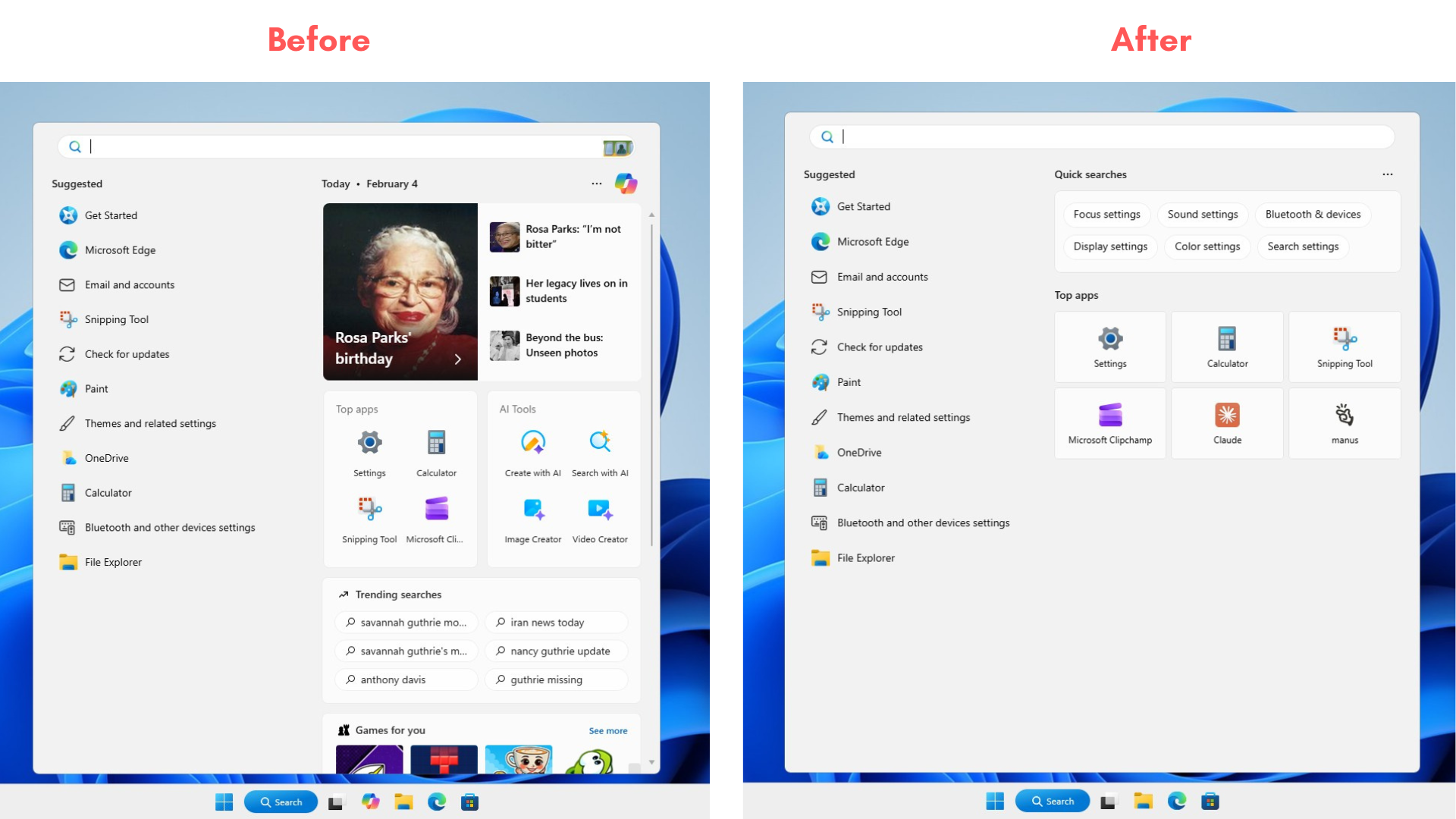
Why “Ask Copilot” May Outperform Windows Search
Looking ahead, Microsoft seems less inclined to refine Windows Search and is experimenting with a new feature called “Ask Copilot, ” set to debut in Windows 11 in 2026. This innovative search interface aims to provide a cleaner and more efficient search experience.

Unlike the current Windows Search, Ask Copilot is designed with minimalism in mind. It prioritizes efficiency by focusing on app, file, and settings searches, integrating AI suggestions seamlessly into the process.

Notably, Ask Copilot utilizes the same Windows Search index but does so with a more sophisticated understanding of user intent. For instance, typing a query like “how to make my screen brighter”is interpreted intelligently, leading users directly to the appropriate brightness settings, rather than reverting to a generic search.
This emerging Ask Copilot feature promises a smoother experience compared to the traditional Windows Search; however, its overall effectiveness will ultimately depend on user preference and engagement with AI capabilities.
What about you? Do you prefer using Windows Search, or have you turned to third-party alternatives? Share your thoughts in the comments below.